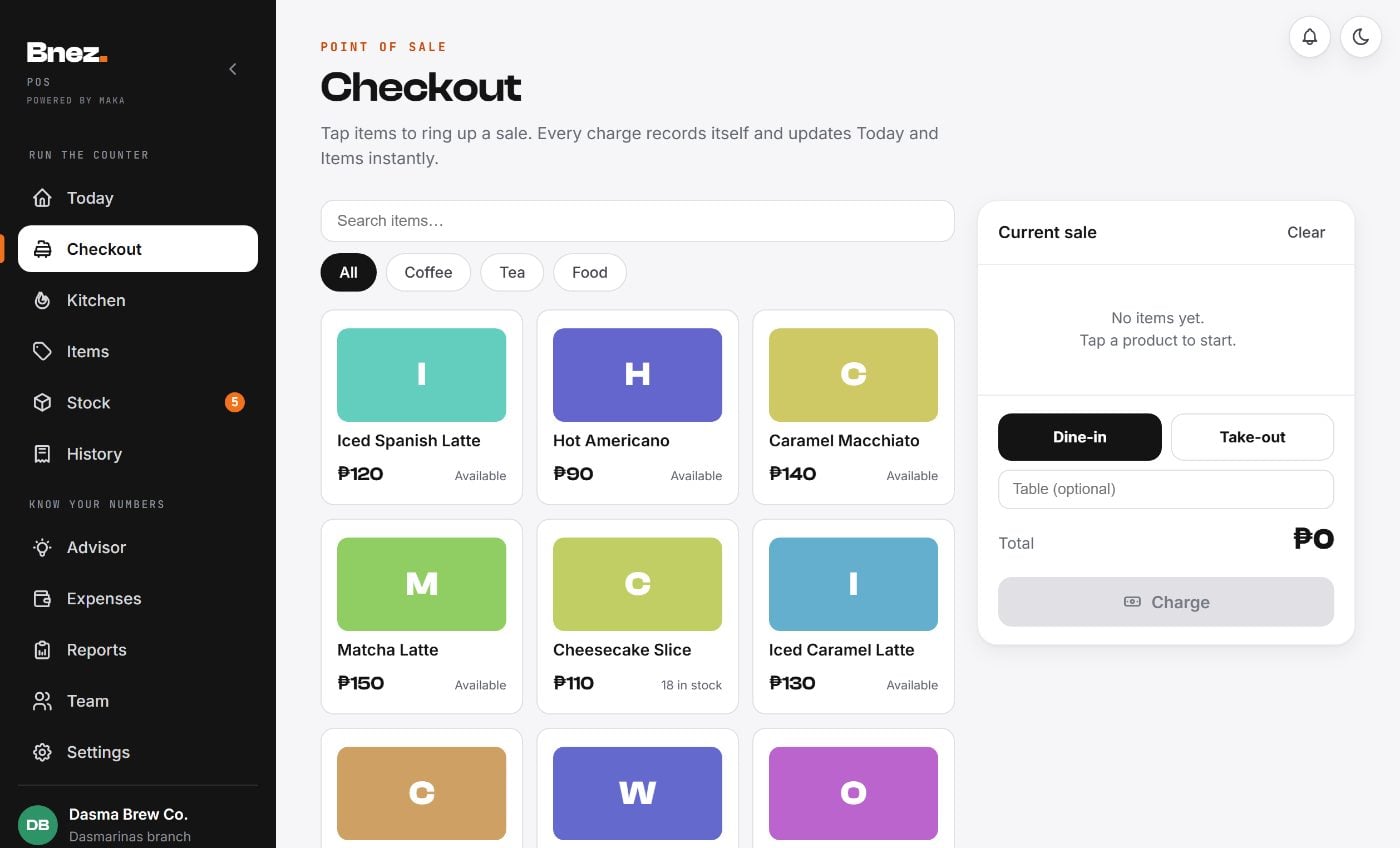
Take the order
Choose dine-in or take-out, select items and add-ons, and add a table label or order note. Staff can review the order before recording payment or adding an online tab round.
Bnez POS · Restaurant POS
Connect the order at the counter with the work in the kitchen. Bnez keeps dine-in, take-out, open tabs and recorded payments in one place.
From order to service
A restaurant POS should make the handover between staff easier to follow. Bnez carries item choices, quantities and order notes through the shift.
Choose dine-in or take-out, select items and add-ons, and add a table label or order note. Staff can review the order before recording payment or adding an online tab round.
Use the kitchen screen to see the orders being prepared. Configure stations so the kitchen and bar can follow their own items and mark their part of an order ready.
Record payment and find the transaction in History. Review the items and amounts when a customer or staff member needs to check what was recorded.
Another round, one tab
Open tabs let the team add rounds during service and settle the visit as one sale. Tabs are online, so staff can work from the same saved order.
The rest of the restaurant
Link menu items to recipes and receive ingredient deliveries into stock. Review low-stock reminders and keep recipe quantities current as portions or ingredients change.
Give team members their own sign-ins and choose their permissions. Staff can handle the work assigned to them while owner reports and cost information stay restricted.
Review sales, popular items and the amount kept after recorded costs. Enter running expenses and compare reporting periods to understand what changed.
Before you choose
See the full service
Follow an order from the counter to the kitchen, then check how it appears in your sales and stock.